
Software is chosen on features; POS hardware is chosen on technical details nobody explains to you. Which printer format, which type of scanner, and why your cash drawer does not plug in where you think it does. Here is the guide we wish we had before the first purchase.
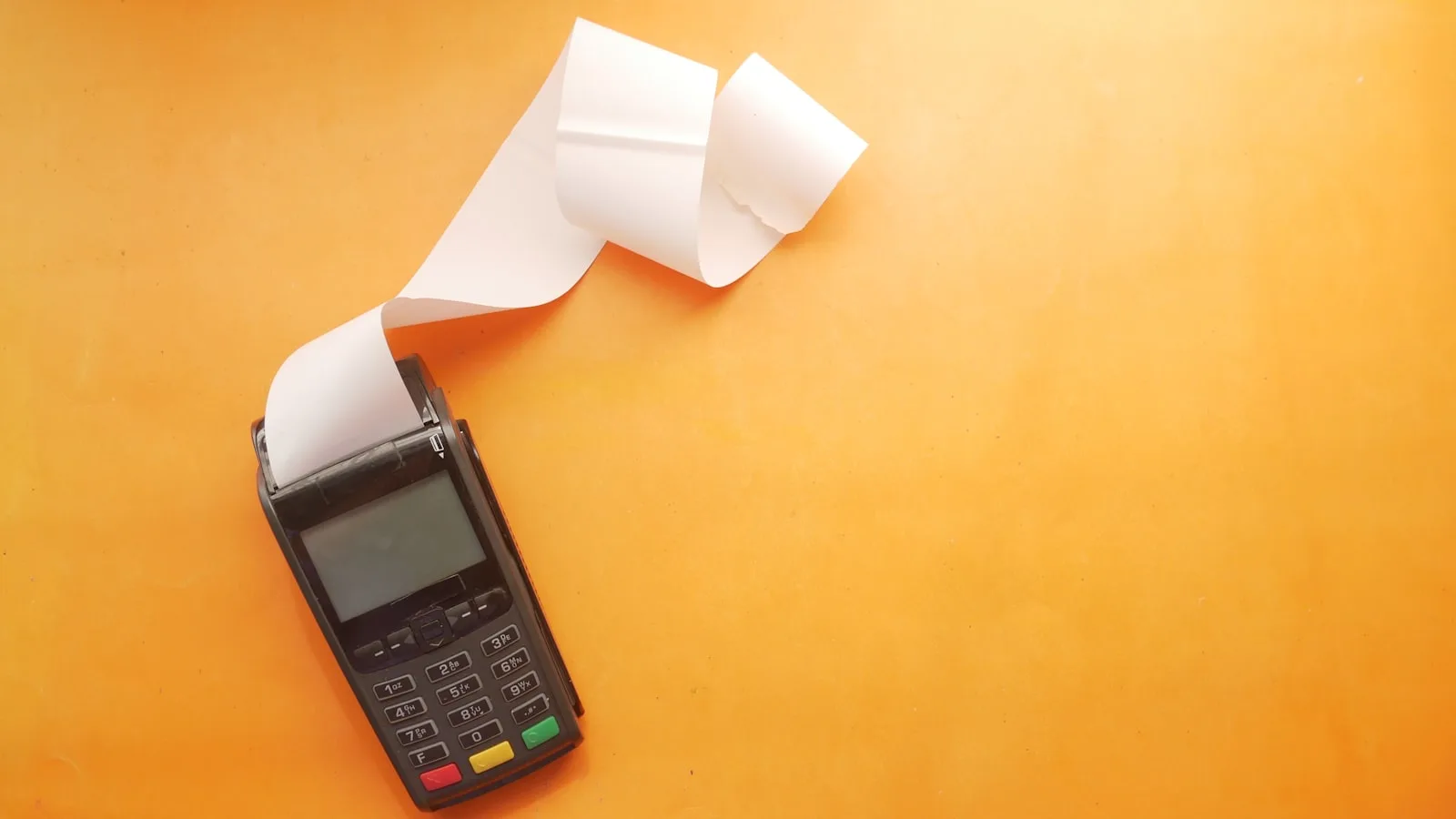
In short
- Three purchases are enough to start: a PC, an 80 mm thermal printer and a USB barcode scanner.
- The cash drawer plugs into the printer, not the computer. It is the number one surprise of a first install.
- Buy standard: an ESC/POS printer and a keyboard-mode scanner work with almost any software.
- Thermal receipts fade over time. One more reason to keep the history in your software rather than in a shoebox.
- Be wary of proprietary hardware sold as inseparable from one particular program: the day you switch, everything has to be bought again.
The minimum budget that works
You do not need a complete counter on day one. Here is the order to equip in, and what each purchase genuinely buys you.
| Purchase | What it gives you | When |
|---|---|---|
| A Windows PC | It runs the software and holds your database. The central piece. | Immediately |
| An 80 mm thermal printer | The customer receipt, and control of the cash drawer. | Immediately |
| A USB barcode scanner | Speed at the counter and the end of pricing errors. | From 50 lines up |
| A cash drawer | Security for the cash and a record of each opening. | As soon as you have staff |
| A customer display | Customer confidence and a place for your offers. | When the queue grows |
| A label printer | Barcodes on what has none: loose goods, crafts, imports. | If you sell uncoded goods |
| A UPS | It stops a power cut from corrupting your database. | If the power is unreliable |
The thermal receipt printer
This is the first purchase after the PC, and the easiest to get right once you know four pieces of vocabulary.
- 80 mm or 58 mm: This is the paper width. 80 mm is the retail standard: the receipt is readable, it fits a logo and your legal details. 58 mm is built for mobile and small devices. For a shop, take 80 mm, the rolls are available everywhere.
- ESC/POS: This is the language almost every receipt printer understands. A printer advertised as ESC/POS compatible will work with practically any POS software. A printer that mentions it nowhere is a risk.
- The auto-cutter: The blade that cuts the receipt by itself. Without it you tear the paper by hand on a serrated edge, which is slow and eventually irritating. Check the auto-cutter is there: it is sometimes the only difference between two models.
- The connection: USB for the counter printer, that is the simplest. Ethernet if the printer is far away, in a kitchen for example. Bluetooth only for mobile use, because it is also the most temperamental day to day.
- The drawer port: A socket that looks like a telephone socket, usually marked DK or RJ11. This is how the printer tells the cash drawer to open. Do not buy a printer without one if you intend to use a drawer.
What nobody tells you about thermal paper
A thermal receipt is not printed with ink: the paper is heated. As a result it fades over time, and very fast if it sits in the sun or in a car. A two-year-old receipt can be completely unreadable. Since you have to be able to justify your sales for ten years, the copy that counts is not the box of receipts under the counter, it is the history kept in your software.
The barcode scanner
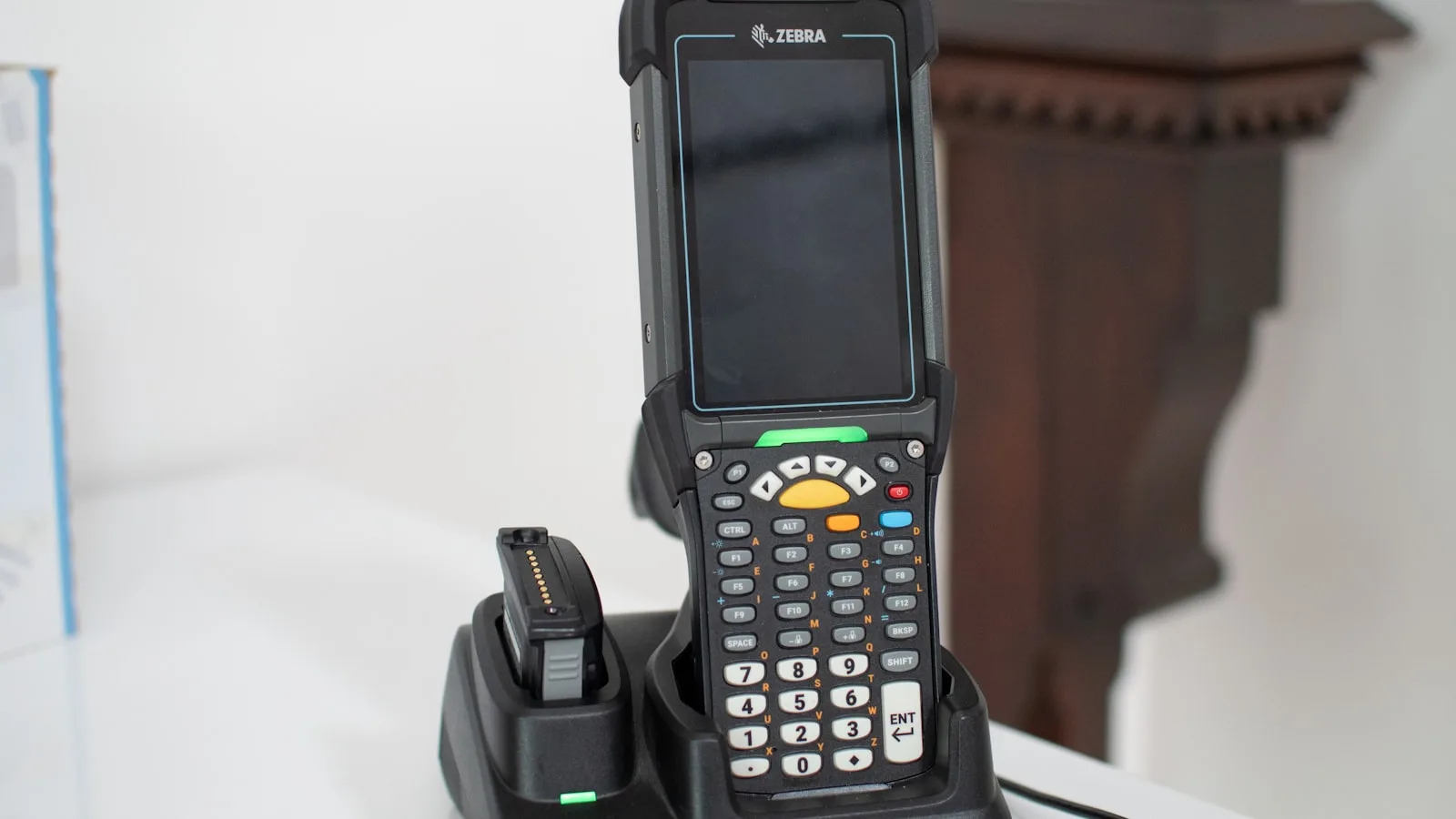
This is the accessory that changes counter life the most, and the one bought most at random. Three questions are enough.
- 1D or 2D?: A 1D scanner reads classic barcodes with vertical bars, which covers every retail product. A 2D scanner also reads QR codes and matrix codes. If you might one day scan a payment QR or a voucher on a phone, take 2D: the price difference is small and it saves you buying twice.
- Corded or cordless?: Corded never runs out of battery and costs less: the right choice for a fixed station. Cordless earns its place when you scan on the shelves, for stock counts or for items too heavy to carry to the counter.
- Keyboard mode: This is the important point. A scanner in keyboard mode, known as HID, behaves as though someone typed the code very fast. There is no driver to install and it works with every program. It is the default on nearly all scanners sold today, but check: it is what guarantees you can reuse it if you change software.
A simple in-store test before buying: plug the scanner in, open a plain text editor and scan a product. If the code types itself into the file, the scanner will work with your till. If nothing happens, walk away.
The cash drawer: the connection that surprises everyone
Here is the piece of information that saves an hour of frustration on install day: a cash drawer does not plug into the computer. It plugs into the receipt printer, with a cable that looks like a landline telephone cable.
How it works is simple. At the end of the sale, the software sends the receipt to the printer and, in the same movement, an electrical pulse goes out to the drawer, whose latch releases. That is why the drawer opens at the exact moment the receipt comes out.
Two practical consequences. First, you need a printer with a drawer port, otherwise nothing will open. Second, if you have no printer, there are drawers that connect directly over USB, but they are rarer and often less well supported by software.
As for choosing the drawer itself, look at three things: the number of note and coin compartments, matched to the currency you actually handle, the sturdiness of the opening rail, which is the part that breaks first, and a key lock with closed, normal and open positions.
The customer display
The customer display is the small screen facing the customer, showing the item scanned and the total. It is often taken for a gadget, wrongly: it answers a real problem, which is trust at the moment of payment.
The customer sees the price of each item as it is added. That removes the most frequent dispute at any counter, the shelf price that does not match, and it saves you recounting in front of a queue.
Two forms exist. The small alphanumeric pole display, showing the price and total on one or two lines, and the second screen, an ordinary monitor showing the whole basket. A second screen often costs less than a dedicated display and lets you run your offers between sales, which is what BelloPOS does with its advertising customer screen.
The label printer
This only concerns shops selling products without barcodes: loose goods, crafts, imported products, repackaged items. If that is you, it quickly becomes essential.
One technical distinction matters here, and shops explain it badly. Direct thermal labels need no consumable beyond the roll, but they fade like a till receipt. Thermal transfer labels use an ink ribbon and hold for years without changing.
The rule is simple: for a shelf or display label changed every week, direct thermal is plenty. For a label stuck on a product that will sit in stock for months, or go into a freezer, use thermal transfer.
The computer: which machine to buy
Good news, POS software is not demanding. An entry-level machine does the job, and so does a second-hand one in good condition. This is not where your budget should go.
- An SSD rather than a hard disk: This is the only component that genuinely changes how the system feels. An SSD makes startup and product searches instant, where a mechanical disk keeps you waiting several seconds every time.
- Enough memory, without excess: POS software does not consume much. 8 GB is comfortable and more than enough for a shop.
- Enough USB ports: Count them before buying: printer, barcode scanner, possibly a label printer and a keyboard. A small USB hub costs very little and saves the headache.
- A UPS if the power is unstable: A cut at the wrong moment can corrupt a database. A UPS, even a small one, gives you time to shut down properly and protects your sales history.
What not to buy
- Proprietary hardware tied to one program. The day you change software, or the vendor closes, everything has to be replaced. Prefer standard USB and ESC/POS.
- The badly sized all-in-one bundle. Complete counter offers are convenient, but they often include a display and a label printer you will have no use for in the next two years.
- A 58 mm printer for a shop. The receipt is narrow, legal details sit awkwardly, and rolls are less common. Keep 58 mm for mobile use.
- A cordless scanner for a fixed station. You add a battery to charge and a pairing to redo, for no benefit at all when the scanner never leaves the counter.
- A drawer with no port compatible with your printer. Check the printer has a drawer port before ordering the drawer, not after.
Maintenance and common faults
POS hardware rarely breaks, but it always breaks at the same moment: a Saturday, with a queue. Here is how to get out of it.
| Symptom | Most common cause | What to do |
|---|---|---|
| The printer produces blank paper | The roll is loaded the wrong way round. Thermal paper only has one printable side. | Turn the roll over. If in doubt, scratch the paper with a fingernail: the side that goes black is the right one. |
| The drawer no longer opens | The cable has come out of the printer, or the lock is in the closed position. | Check the cable at the printer end, then the key position. |
| The scanner stopped reading some codes | The window is scratched or dirty, or the code is damaged. | Clean the window with a soft cloth. If just one product resists, key the code in by hand and print a fresh label. |
| Receipts come out faint | Poor quality paper, or a dirty print head. | Change the roll to test, then clean the head with a cotton bud and a little isopropyl alcohol, printer switched off. |
| Everything is slow at startup | A mechanical hard disk, almost every time. | Replacing the disk with an SSD is the best value-for-effect item on this whole list. |
A commonsense tip that saves Saturdays: always keep two spare paper rolls in the drawer, and write your printer’s exact model on a label stuck underneath it. On the day you need to buy in a hurry, you will not be hunting for it.
Frequently asked questions
What hardware do I really need to start?
Three things: a Windows PC, an 80 mm thermal printer and a USB barcode scanner. The cash drawer joins as soon as you have staff; the customer display and label printer only if your trade calls for them. Buying everything on day one is the surest way to pay for hardware that sits idle.
Does the cash drawer plug into the computer?
No, and this is the classic surprise. It plugs into the receipt printer with a cable resembling a telephone lead, usually marked DK or RJ11. The printer sends a pulse that releases the drawer as the receipt prints. So check your printer has that port before buying a drawer.
Which printer width should I choose, 58 or 80 mm?
80 mm for a shop. The receipt is readable, it fits a logo and your legal details, and rolls are available everywhere. 58 mm is designed for mobile devices and small terminals: narrower and cheaper on paper, but poorly suited to a counter.
Do I need a 1D or 2D barcode scanner?
1D reads every classic product barcode and is enough for retail. 2D also reads QR codes, which becomes useful for QR payments and vouchers shown on a phone. Since the price gap is small, 2D is the choice that ages best.
Do thermal receipts really fade?
Yes. Thermal paper darkens under heat rather than receiving ink, and that print fades with time, light and heat. A receipt kept two years in a box can become unreadable. This is why the archive that counts for your obligations is the digital history in your software, not the pile of paper.
Can I use an office printer for receipts?
Technically yes, if your software can print to A4, but it is a bad idea day to day: it is slow, it uses ink and a whole sheet per sale. A thermal printer costs little, uses no consumable beyond paper, and produces a receipt in a second.
Will my hardware still work if I change POS software?
If you bought standard, yes. An ESC/POS printer and a keyboard-mode scanner work with the vast majority of programs, BelloPOS included. That is precisely why you should avoid proprietary hardware sold as inseparable from one program.
What to take away
Good POS hardware is not the most expensive, it is the most standard. An 80 mm ESC/POS thermal printer with a drawer port, a keyboard-mode barcode scanner, and a PC with an SSD: that combination works with nearly every program, can be replaced anywhere and will follow you if you change solution. Buy in that order, and add the rest only when the need shows up.
Software that talks to your hardware
BelloPOS handles printer configuration, scanning products by barcode, printing your own labels and the second customer screen. The Lite edition is free for life and runs entirely offline.