
The good news first: a barcode scanner is a keyboard. It presents itself to Windows as one, connects with no driver, and that is why almost any model works with almost any POS software. So the question is not “which one is compatible” but “do I have one of the three needs that justify paying more”, and “how do I set the two options nobody explains”.
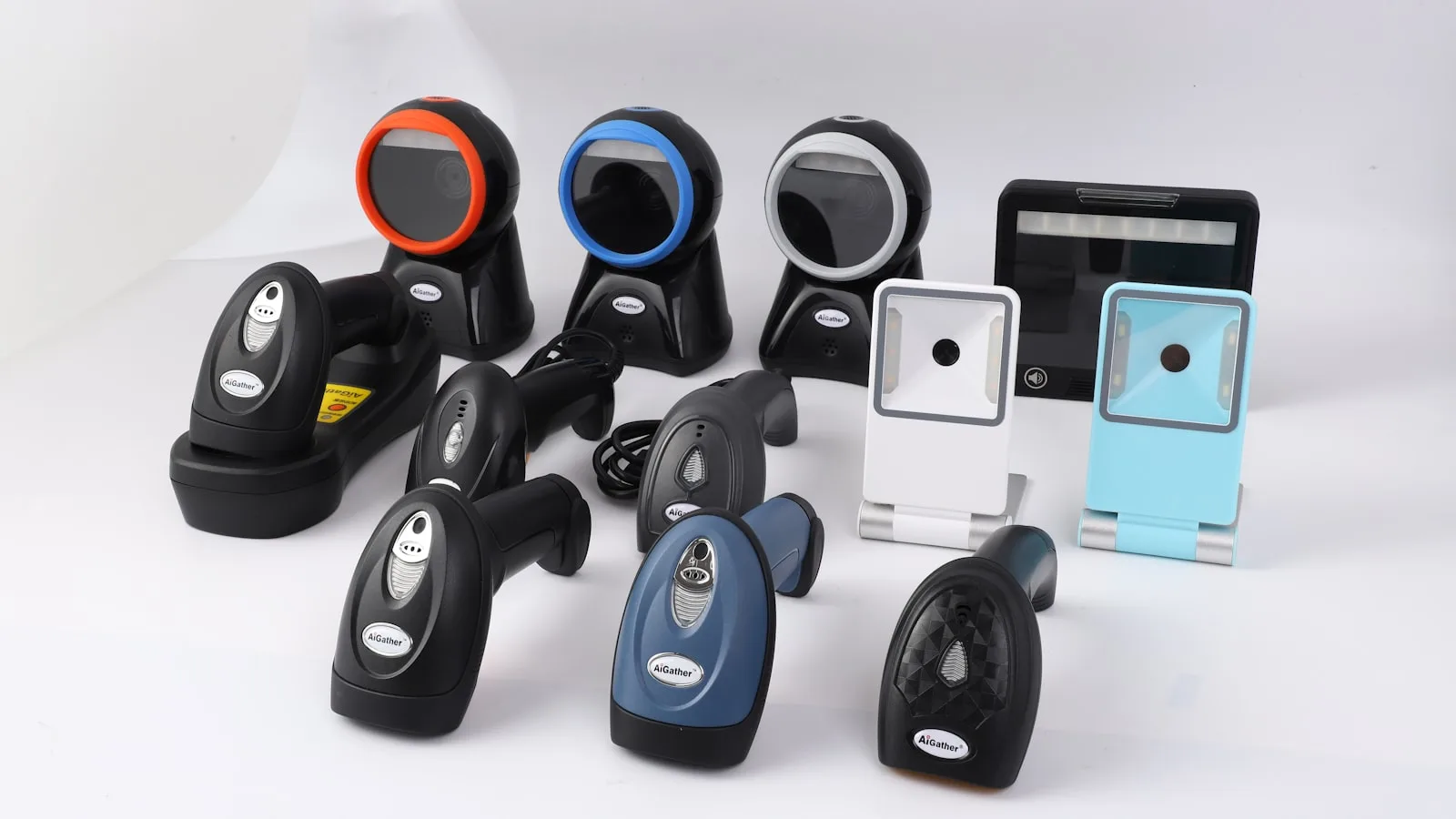
In short
- Any USB or Bluetooth scanner works with no driver: it sends keystrokes, as though you were typing.
- 1D is enough for most shops. The barcodes on packaged products are 1D codes.
- Get 2D if you must read a phone screen: a 1D laser is physically incapable of it.
- The setting that stops everyone is the Enter suffix: without it the code appears but the sale never commits.
- The Moroccan trap is the AZERTY keyboard: a scanner set to QWERTY returns digits turned into symbols.
The four families, and which one concerns you
The technical differences come down to what the device can read and how it connects. The rest is comfort.
| The type | What it reads | Who it is for |
|---|---|---|
| 1D laser, corded | Classic vertical-bar barcodes, including from a few dozen centimetres away. | Grocery, mini-market, hardware: the default choice, and the cheapest. |
| 1D CCD, corded | The same codes but very close up, with better tolerance for damaged codes. | Small items, cosmetics, pharmacy: where you scan at contact. |
| 2D imager, corded | Everything: 1D, QR, DataMatrix, and above all codes shown on a phone screen. | Anyone taking QR payments or vouchers, or selling tickets. |
| Wireless, Bluetooth or dongle | 1D or 2D depending on model, with a base and a battery. | Aisles, stockroom, market stall, stock takes away from the counter. |
The row that genuinely matters is the third. A laser sweeps a red line across a surface that reflects it: on a backlit screen that does not work, whatever the laser costs. If you expect to accept codes presented on a phone, you need a 2D imager, and that is the only case where the entry-level model is a bad buy.
The three cases where the cheap model is a mistake
In every other case the cheapest scanner on the market will do the job for years.
- You must read phone screens: Payment codes, discount vouchers, tickets, digital loyalty cards. You need a 2D imager. It is the only difference that is physical rather than commercial.
- Your codes are small, curved or damaged: Cosmetics bottles, jewellery, imported goods whose label has travelled. An imager, or at minimum a decent CCD, reads where an entry-level laser gives up and makes you type the code by hand.
- You scan hundreds of times a day: Here it is no longer the optics that matter but the mechanics: the trigger, the cable, and above all the counter stand with automatic detection, which lets you pass the item in front of it without pressing anything.
Note what is not on that list: read speed. Every current scanner reads faster than you can present items. It is a spec-sheet argument, not a difference at the till.
Setting up, in six minutes
No driver to find. Two settings to make, and both are made by scanning codes printed in the model’s manual.
- Plug the scanner in to a USB port. Windows installs it as a keyboard without asking anything.
- Open Notepad and scan an item. This is the test that isolates everything: if the code types correctly there, the hardware is fine and any remaining problem is software or settings.
- Set the Enter suffix. In the manual, look for “suffix” or “Enter” and scan the matching code. Without it the scanner types the number but never commits the line.
- Set the keyboard country. Look for “keyboard country” and scan the French code if your PC is AZERTY. This is the step that is almost always missed.
- Test on your worst barcodes, not on a fresh water bottle: a frozen item under frost, a folded label, a small round bottle.
- Fit the stand and set the height so the hand passes the item without twisting the wrist. That is what makes real speed, not the spec sheet.
If the Notepad test is good and the till does not react, the problem is the Enter suffix nine times out of ten. It is literally the setting most often reported as “the scanner does not work” when everything works.
The AZERTY trap, worth knowing before you call support
A scanner sends keystrokes, and it sends them according to the layout it is set to, usually QWERTY by default. On a PC configured in French the digits then come out transformed: a 5 becomes a bracket, a 7 becomes an è, and the scanned code matches no product. The hardware is fine and so is the software. Simply scan the “keyboard country: French” code from the manual and everything falls into place.
What is specific to Moroccan retail
A lot of stock arrives with no usable barcode: loose goods, imports, crafts, repackaged items, or a label damaged in transit. The scanner can do nothing about that, and rightly so: the answer is not a better reader but a label printer. You generate a code, print it, stick it on at goods-in, and the item becomes scannable like any other.
The other development to anticipate is the code shown on a phone. Between QR payments, discount vouchers sent by message and digital loyalty cards, a shop equipping itself today is well advised to take a 2D imager even without a use for it yet: the price gap with a 1D laser is small, and it avoids buying another scanner in two years.
Six questions to ask before buying
Short, and they avoid two thirds of bad purchases.
- Is it a 1D or 2D model? If screens must be read, only 2D answers.
- Is the counter stand included, and does it detect the item automatically?
- Does the manual contain the configuration codes for the suffix and the keyboard country? Without the manual you are stuck.
- Corded or wireless? Corded never runs out of battery, which makes it the right choice at the counter.
- How long is the cable, and does it run tidily behind the unit?
- Can I try it on my own items before paying, especially the difficult ones?
Mistakes to avoid
- Buying a 1D laser to read QR codes on phones. No setting will make up for that.
- Forgetting the Enter suffix and concluding the scanner is incompatible with the till.
- Ignoring the keyboard layout and spending an afternoon hunting a bug that does not exist.
- Paying for read speed. They all read faster than the hand presenting the item.
- Not planning for the label printer when half the stock arrives without a usable code.
Frequently asked questions
Which barcode scanner should I choose for a shop?
A corded 1D model with a counter stand suits the vast majority of shops, and it is the cheapest. Take a 2D imager only if you must read codes shown on a phone screen, or if your items carry very small, curved or damaged codes.
Do I need a driver to install a barcode scanner?
No. USB and Bluetooth scanners present themselves to the system as a keyboard and work the moment they are plugged in, with no installation. That is also why they are compatible with practically every POS package, including BelloPOS.
My scanner reads the code but the sale does not commit, why?
The Enter suffix is missing. The scanner types the digits and then stops, while the software is waiting for a confirmation. Look for “suffix” or “Enter” in the model’s manual and scan the matching configuration code: it is fixed in ten seconds.
My scanner returns symbols instead of digits, what do I do?
That is the keyboard layout. The scanner is set to QWERTY and your PC is AZERTY, so digits turn into punctuation. Scan the “keyboard country” code for French in the manual and the problem disappears.
Can a scanner read a code on a phone screen?
Only a 2D imager. A 1D laser reader projects a line and reads the reflected light, which does not work on a backlit screen. If you plan on QR payments or vouchers, go straight to 2D.
What to take away
Do not pay for what does not show at the till. A corded 1D scanner with a good stand covers nearly every shop, and the only real reason to move up is reading phone screens. Once it is plugged in, do the Notepad test, set the Enter suffix and the keyboard layout, and you will have avoided the only two problems merchants genuinely hit.
Scan, and the product lands in the basket
BelloPOS works with any USB or Bluetooth scanner, with no configuration on the software side. It also generates barcodes for products that have none and prints your labels. The Lite licence is free for life.
Read next
Other practical guides on the same subject: