
Before calling anyone: eight faults out of ten are the roll, the cable or the Windows print queue, and all three are fixed in under five minutes without buying anything. The single most common cause is paper loaded the wrong way round, because thermal paper only darkens on one side. Here is the symptom table, then the diagnosis in order.
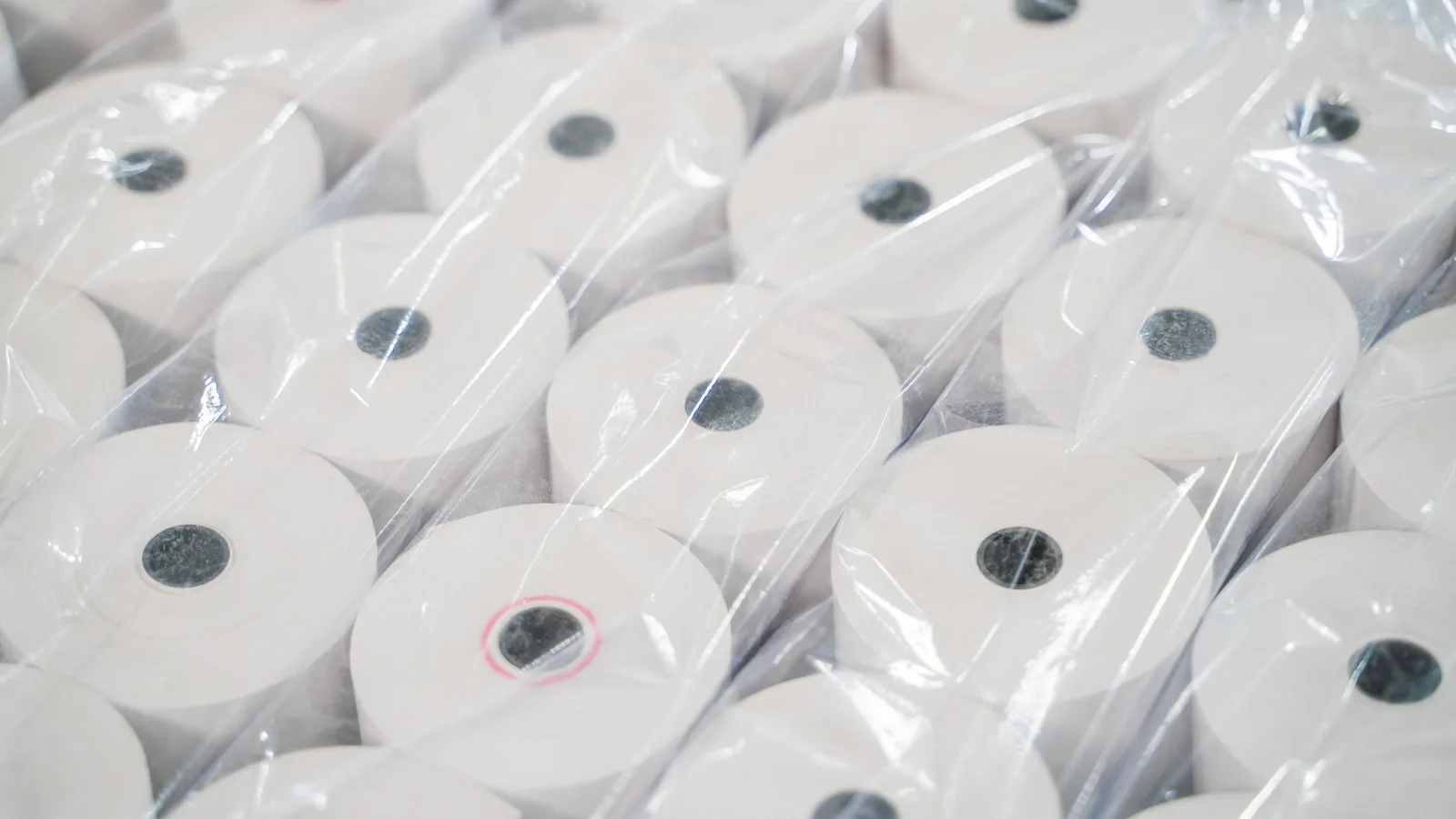
In short
- Thermal paper has one printable side. Loaded the wrong way, it comes out blank: that is fault number one.
- The fingernail test: scratch the paper with a nail or a coin edge. The side that darkens is the one that must face the head.
- A blank receipt is not the same problem as a faint one. Blank means direction or head; faint means cleanliness, paper or density.
- Garbled characters almost always mean the wrong driver or emulation, not a hardware fault.
- Do not buy a printer before step 7. The first six are free.
The symptom table
Find your row. The exact symptom takes you straight to the right family of causes and saves you dismantling what works.
| What you see | Most likely cause | What to do |
|---|---|---|
| Paper feeds but comes out completely blank | Roll loaded upside down, or a dead print head. | Fingernail test, then flip the roll. Still blank, go to step 7. |
| Nothing moves, no sound, no light | Power supply, socket or adapter. | Check the socket and adapter, try another outlet. |
| Light is on but nothing prints | Cable, port, or a stuck Windows print queue. | Reconnect the cable and clear the queue (step 4). |
| The receipt is faint or streaky | Dirty head, poor paper, or density set too low. | Clean the head, change the roll, raise the density. |
| Strange characters and symbols | Wrong driver or wrong emulation. | Reinstall the exact model driver (step 5). |
| Printing stops mid-receipt | Damaged cable, weak power, or a full buffer. | Change the cable, avoid long USB extensions. |
| The receipt prints but does not cut | Jam in the blade, or paper too wide. | Open the lid, clear the offcuts, check 58 or 80 mm. |
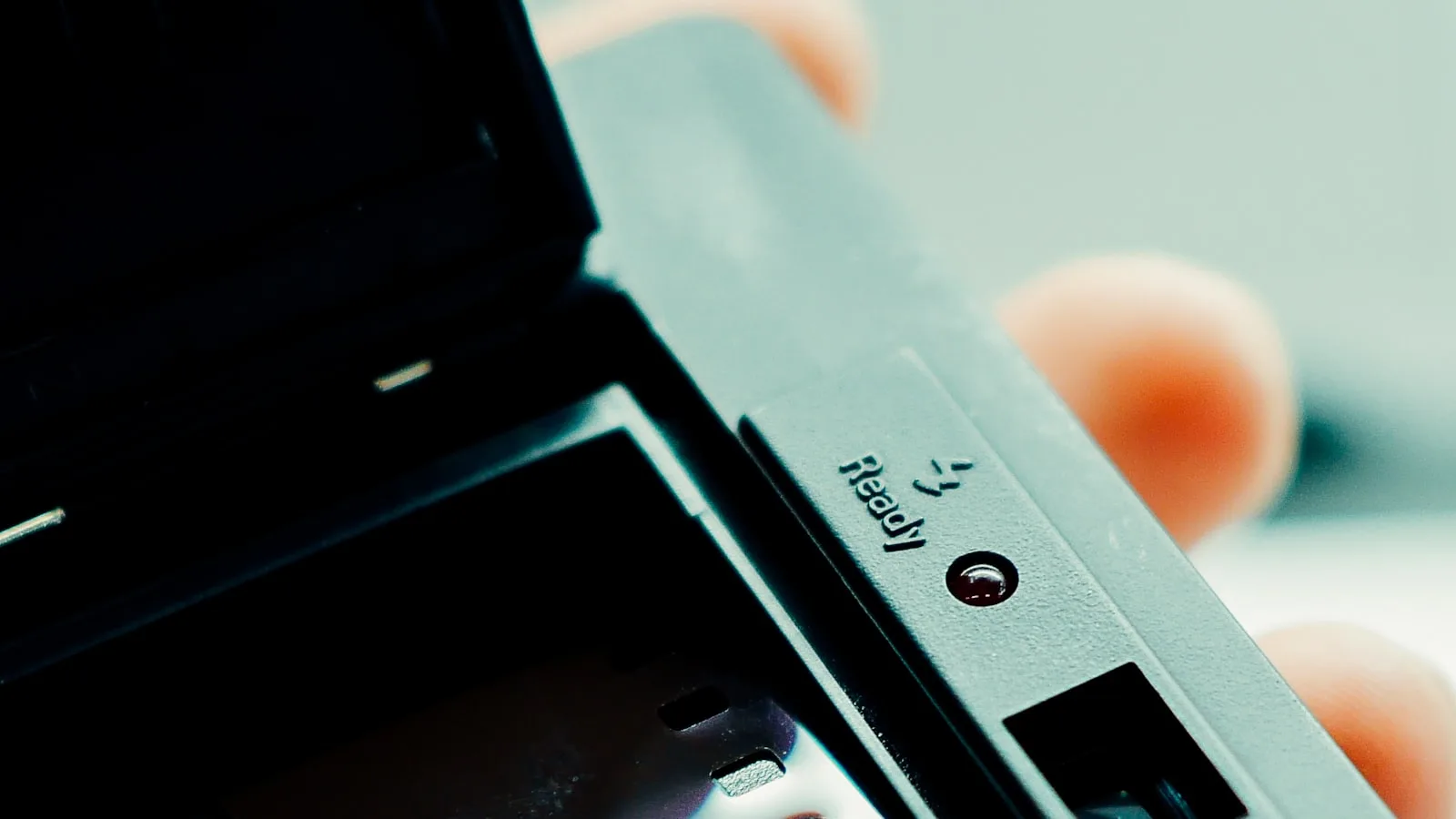
| Red light blinking | Lid not properly shut, out of paper, or head overheating. | Close it firmly, reload paper, let it cool. |
Note the distinction between the first and fourth rows: a blank receipt and a faint one almost never share a cause, and confusing them is how perfectly good printers get replaced.
Four things almost nobody knows about these printers
They explain most false faults and most unnecessary purchases.
- There is no ink and no toner: A thermal printer heats paper that reacts to heat. Looking for a cartridge is pointless: if nothing prints it is the paper, the heat or the signal, never the ink.
- Only one side reacts: Hence the fingernail test: scratch the paper quickly with a nail or a coin edge, and the side that leaves a grey mark is the thermal side, which is the one that must contact the head.
- The paper erases itself: Heat, light and time fade a thermal receipt within months. That is not a fault, it is the nature of the medium, and it is why your legal archive is the till’s history and not the roll kept in a drawer.
- 58 and 80 mm are not interchangeable: Too wide and the roll rubs and jams; too narrow and the print shifts and the cut goes wrong. Check the width the model states before buying a whole box.
The diagnosis, in order
Work through without skipping. They are ordered from most likely and free to rarest and most expensive.
- The roll direction. Open the lid, do the fingernail test, reload with the thermal side facing the head. Close firmly until it clicks.
- The paper itself. End of roll, the glued end strip, or poor-quality paper: try a fresh roll from a different box.
- The lid and the sensor. A lid that looks closed but does not click leaves the sensor reading open, and the printer refuses to print with nothing to show for it but a light.
- The cable and the print queue. Reconnect straight to the PC, no hub and no extension. Then in Windows open the print queue, delete every waiting document and restart the print service.
- The driver and emulation. Garbled characters mean a generic driver where the model wants its own, or the reverse. Reinstall the exact model driver, then print a test receipt from the printer settings, not from the till.
- The till’s settings. Check the software points at the right printer and the right width, 58 or 80 mm. A till sending 80 mm to a 58 mm printer produces truncated or empty receipts.
- The print head. Switch off, unplug, let it cool, then clean the head strip with a cotton bud and isopropyl alcohol. Let it dry completely before reconnecting. This also fixes most faint printing.
- The printer itself. If a test receipt launched from the driver settings comes out blank with a fresh roll loaded correctly and a clean head, the head is dead. That is the only conclusion that justifies a replacement.
The test receipt launched from the driver is the most useful diagnostic on the list, because it takes your POS software out of the equation. If it prints correctly, the printer is fine and the problem is in the software settings. If it comes out blank, the software is not at fault.
What never to do
Never clean the head with water, a strong solvent or anything metal: the thermal strip is fragile and a scratch is permanent. Never force a jam with pliers before opening the lid and cutting the power. And do not pull jammed paper backwards against the feed direction, or the cutter blade comes with it.
What kills printers in Morocco specifically
Heat first. A counter in full sun in summer, a printer sitting against a window or on top of a fridge, and the head goes into protection mid-afternoon: it stops, then works again once cooled, which reads as a mysterious intermittent fault. Move the printer into shade and air before concluding anything.
Then paper quality. The cheapest rolls on the market are often too thin, leave a dust that fouls the head within weeks, and fade even faster than normal. The arithmetic is quick: a cheap box costs less than a decent box, and far more than a print head. Finally power cuts and brownouts, which leave the printer in an inconsistent state: after a cut, switch the printer off and on again before deciding it has died.
Five habits that prevent the fault
All free, all worth it over a year.
- Clean the head once a month with isopropyl alcohol, printer cold and unplugged.
- Buy paper by the box in decent quality and stay with the same reference: then you know the fault is not coming from there.
- Store rolls somewhere cool and shaded, never on the counter or near a heat source.
- Keep a spare roll under the till, and a spare cable: those are the two parts that fail on a Saturday.
- Do not rely on the roll as an archive. Your till’s digital history is the only record that lasts ten years.
Mistakes to avoid
- Looking for an ink cartridge. There is none.
- Replacing the printer before step 7. A fouled head imitates a dead head very well.
- Changing POS software because the printer stopped responding. Run the driver’s test receipt before blaming anyone.
- Buying a box of rolls without checking the width.
- Keeping printed rolls as your accounts. They will be illegible long before the retention period is up.
Frequently asked questions
Why has my thermal printer stopped printing?
In the vast majority of cases the roll is loaded upside down: thermal paper only darkens on one side. Scratch the paper with a nail; the side that leaves a grey mark must face the print head. If the paper still comes out blank with a fresh roll loaded correctly and a clean head, the head is dead.
Why are my receipts faint or streaky?
Three causes, in this order: the head is dirty, the paper is poor quality, or the print density is set too low. Clean the head with isopropyl alcohol on a cold, unplugged printer, try another roll, then raise the density in the settings.
My printer produces strange characters, what do I do?
That is a driver or emulation problem, not a hardware fault. Reinstall the exact driver for your model rather than a generic one, then print a test receipt from the printer settings to confirm before going back to the POS software.
How do I tell whether it is the till or the printer?
Print a test receipt from the driver settings in Windows, without going through your POS software. If it comes out correctly, the printer works and the software settings need looking at. If it comes out blank or garbled, your software is not the cause.
How long does a thermal receipt last?
Only months, and far less if exposed to heat or light. That is why a roll kept in a drawer is not an archive: the record that has to last ten years is your till’s digital history, backed up.
What to take away
A thermal printer that stops is almost always a five-minute, zero-dirham affair. Do the fingernail test, change the roll, reconnect, clear the print queue, then clean the head. The driver’s test receipt will then tell you unambiguously whether the problem is the machine or the software. Only after those eight steps does a replacement make sense.
A till that prints, even with no internet
BelloPOS drives 58 and 80 mm thermal printers and any printer Windows already knows, with your header and your ICE on every receipt. Everything runs offline on the shop’s PC. The Lite licence is free for life.
Read next
Other practical guides on the same subject: