
Leaving Excel means neither deleting old workbooks nor injecting every old invoice into the new application. A sound migration separates historical archive, master data and open balances. Preserve old invoices in their original form, clean customers and products, define the numbering boundary, then issue new invoices in one system. For a month, compare totals without producing two originals for the same sale.
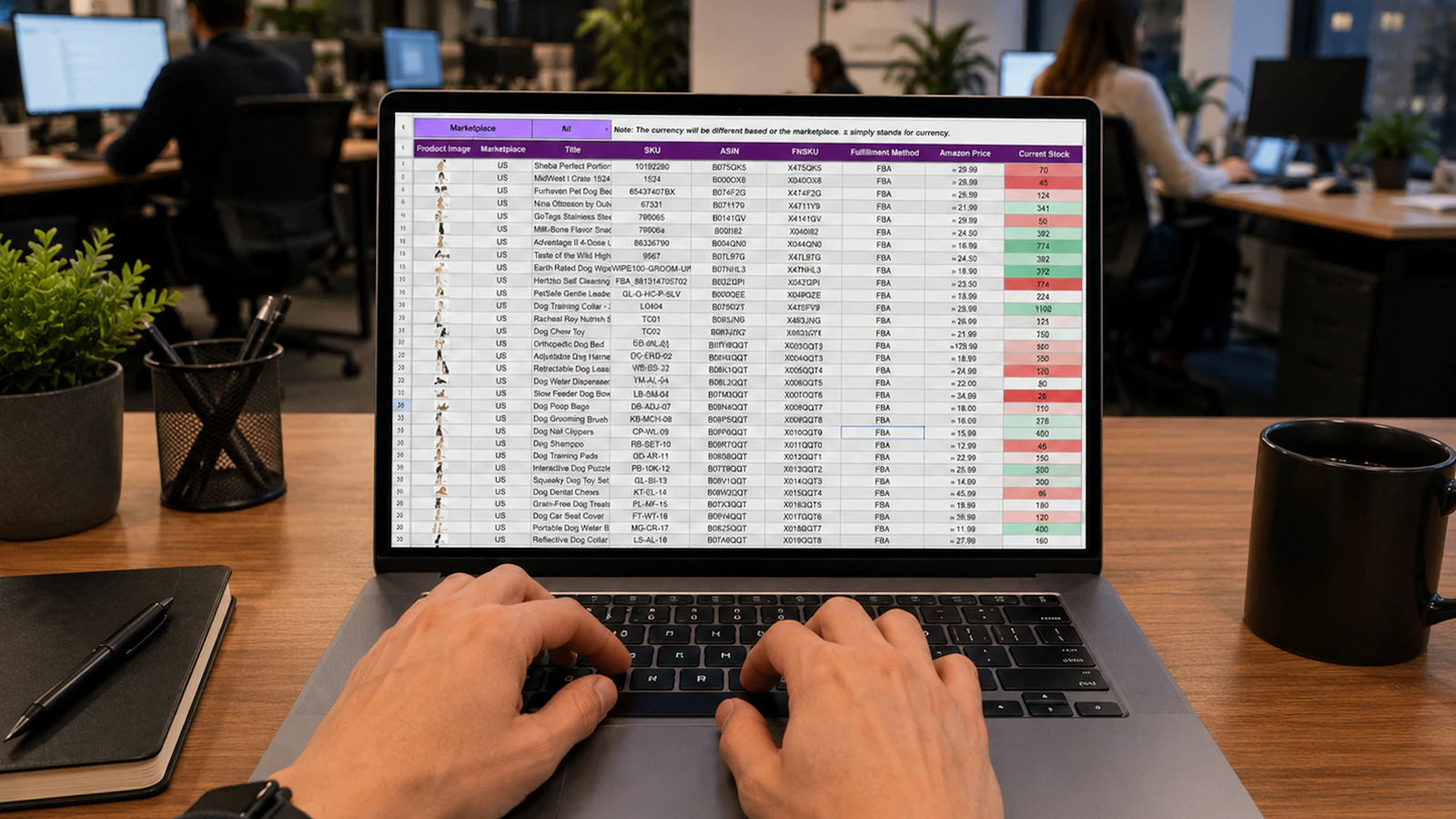
Six cutover decisions
- Inventory every workbook, PDF, folder and number series.
- Separate archive, master data and still-open operations.
- Deduplicate customers, ICE, products, rates and units before import.
- Agree the date and first new-system number with the accountant.
- Keep Excel read-only and the new software as the only issuer.
- Control one month through totals, samples and a restored backup.
1. Map what actually exists
An Invoices folder often contains a blank template, editable files, sent PDFs, customer lists, payment tracking and VAT sheets. Treating these as one table creates duplicates.
| Excel item | Destination | Control |
|---|---|---|
| PDF or final invoice | Unaltered historical archive | Number, date and access |
| Customer list | New-system customer records | Duplicates, ICE, address |
| Catalogue | Products and services | Reference, unit, price, rate |
| Unpaid invoices | Approved opening balance or tracking | Customer, document, due date, remainder |
| Numbering | Documented cutover rule | Last old and first new |
| VAT sheet | Reconciliation evidence | Period, rate, base and source |
CGI 2026 Article 211 provides ten-year retention for the records it covers. Migration does not shorten it: the invoice archive guide separates working copy, backup and archive.
2. Clean before importing
A fast import spreads errors fast. Work on a copy and retain a transformation log.
- Export or copy each source without altering it.
- Give every file an owner and date.
- Normalize spacing and formats without overwriting legal names.
- Deduplicate customers using legal name, ICE and address.
- Separate people and companies where fields differ.
- Normalize product references, units and rates.
- Quarantine doubtful rows in an exception file.
- Test ten rows, then one hundred, before the full lot.
- Recount imported, ignored and replaced records.
- Have the real invoicing user sign off the outcome.
| Field | Cleaning rule | Warning |
|---|---|---|
| Customer | One record per real identity | Same ICE across names |
| ICE | Verified value, never invented | Lost leading zeros or free text |
| Product | Stable reference and clear label | One code for two items |
| Price | Number, currency and net/gross made explicit | Ambiguous decimal separator |
| VAT | Rate validated for the case | Percentage stored as text |
| Date | Unambiguous format | 03/04 without convention |
Download the new software’s sample and align columns to it. Do not force an old invoice number into a technical identifier without understanding its role.
3. Organize cutover day
Choose a date after close and backup, never mid-rush. Finish drafts, export sources, record the last number and perform a restore.
| Time | Action | Evidence |
|---|---|---|
| D−7 | Import and invoice-layout test | Approved sample |
| D−1 | Freeze and backups | Inventory and dated copy |
| Day D | Import masters and settings | Counts and controlled test invoice |
| D+1 to D+30 | Issue only in new system | One unique sequence |
| Month end | Reconcile sales, VAT, payments and records | Explained differences |
| After approval | Make Excel read-only | Documented access and restore |
A month of dual control is not dual issue. Compare totals with a control sheet or journal, but do not create a second Excel invoice for every numbered new-system invoice.

Do not turn history into a false present
Importing old invoices as newly issued can distort sequences, inventory, customer balances and entries. Preserve them as archive or bring only validated balances and references.
4. How BelloPOS supports migration
BelloPOS exports tables as CSV, downloads a sample with expected columns and imports data with replace-or-ignore handling for existing IDs. Test against a backup and start with customers and catalogue; this is not a universal wizard that guesses every Excel structure.
Go issues numbered PDF invoices and prepares UBL 2.1, SHA-256 and period exports. The electronic-invoicing software guide helps test both entry and exit before purchase.
BelloPOS runs on the shop’s Windows PC, so retain backups away from it. Lite can prepare data; invoicing and e-invoicing start with Go. See pricing.
5. The first-month control
Reconcile old and new worlds without retyping every line.
- Invoice and credit-note count by series.
- First and last number with explained gaps.
- Net, VAT by rate and gross totals.
- Cash, credit and settlements separated.
- Ten customers compared with source.
- Ten products compared by code, unit, price and rate.
- Historical invoice found within five minutes.
- XML/ZIP export reviewed by accountant.
- Backup restored on another machine or test copy.
- Exception file closed or assigned.
Document accepted differences. Migration finishes neither when import says success nor when the first PDF prints, but when history, new issue and backup can be retrieved and explained.
Mistakes to avoid
- Importing the original workbook without a copy.
- Confusing historical PDFs with rows to recreate.
- Deduplicating only by name.
- Losing zeros or characters through CSV.
- Resetting numbering without a written decision.
- Issuing in Excel and the new system together.
- Migrating receivables without reconciliation.
- Keeping the only backup on the same PC.
Frequently asked questions
Must every old invoice be imported?
No. Usually retain finals in the archive and migrate only needed masters or balances under an approved plan.
Can BelloPOS import XLSX directly?
Management provides sample files and per-table CSV import. Save a compliant Excel copy as CSV and test it; do not assume automatic XLSX mapping.
How do I preserve old numbers?
Document the last old sequence and first new number with the accountant. Never reuse a number.
What is a month of dual control?
Comparison of totals and samples, not two invoices issued for one sale.
Can Excel remain accessible?
Yes, read-only with backup and limited rights for historical lookup.
Which BelloPOS plan is needed?
Lite can prepare data and tests; numbered invoices and e-invoicing start with Go.
What to take away
Leave Excel in three layers: intact archive, clean data and one new issuer. The numbering boundary, first-month control and real restore matter more than a massive import marked successful.
Sources
The figures and rules quoted above come from these pages, read on the date given in the article.
- Moroccan General Tax Code 2026, DGI, read 29 August 2026
- BelloPOS numbered PDF invoices and fields, read 29 August 2026
- BelloPOS electronic invoicing and UBL export, read 29 August 2026
- BelloCommerce privacy policy, BelloPOS local storage, read 29 August 2026
Test migration on a copy
Download a BelloPOS CSV sample, import a small set, issue a test invoice and verify export before fixing cutover.
Read next
Other practical guides on the same subject: